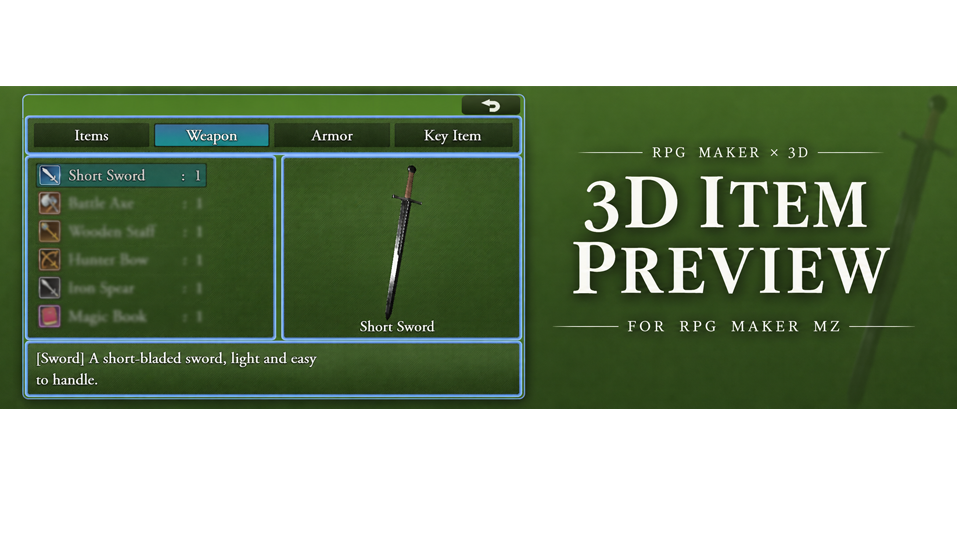
3D Item Preview - For Rpg Maker MZ
A downloadable tool
GENERAL
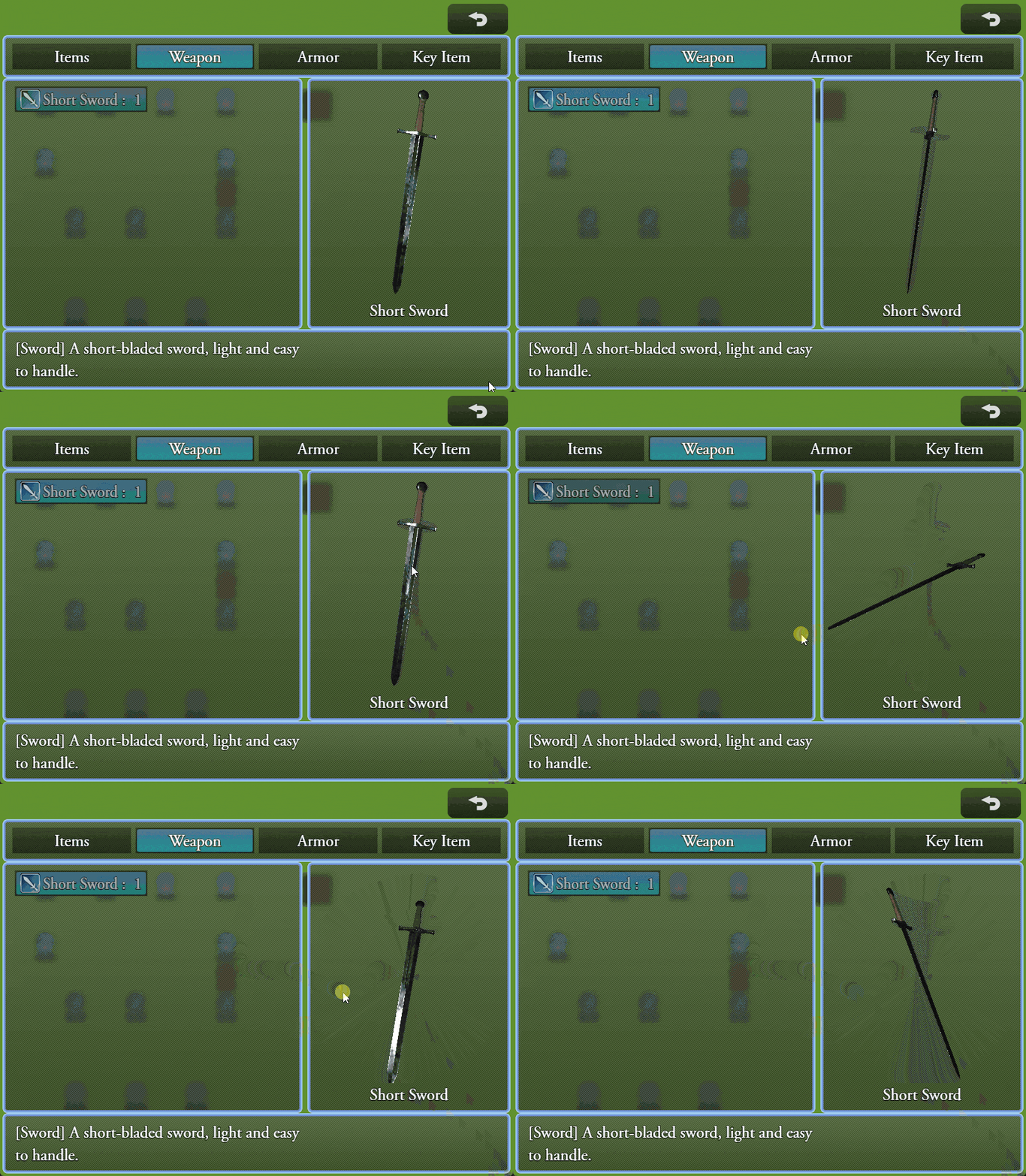
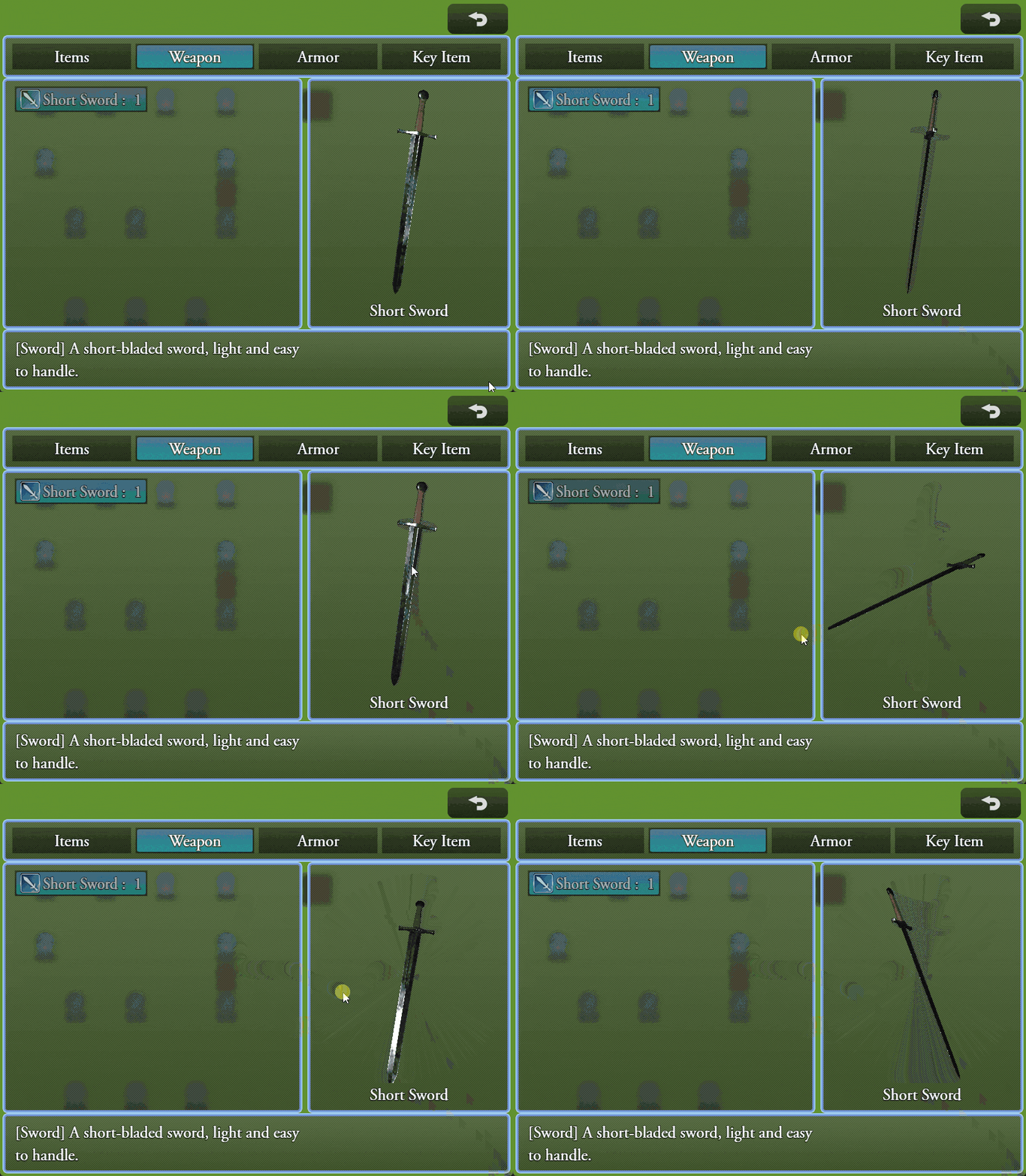
Inside the showcase gif the model "Viking Sword Free low-poly 3D model" by gabor-szantogyorgy from CGTrader is used.
3D Item Preview is a plugin for RPG Maker MZ, part of the RPG MAKER × 3D plugin collection.
The plugin adds an interactive 3D model preview window to the default Item and Equipment scenes, allowing players to view items, weapons and armors as real 3D objects.
Each item can be assigned its own GLB / glTF model through a simple notetag. Models can rotate automatically, and players can interact with them using mouse controls to rotate and zoom.
The preview window is highly customizable through plugin parameters, including its position, size, appearance, model rotation, scale, lighting and background.
This plugin requires the free Blue 3D Core plugin.
MAIN FEATURES
- Interactive 3D previews for items, weapons and armors.
- Support for GLB / glTF 2.0 models.
- Integration with RPG Maker MZ's default Item and Equipment scenes.
- Automatic preview updates when selecting different items.
- Preview support for equipped items and equipment selection lists.
- Simple notetag configuration.
- Individual model rotation, scale, offset and zoom settings.
- Automatic model rotation.
- Customizable rotation axis and speed.
- Mouse drag rotation.
- Mouse wheel zoom.
- Customizable preview window position and size.
- Docked and Overlay layout modes.
- Optional transparent background.
- Custom background colors and images.
- Configurable lighting or shared Blue 3D Core settings.
- Optional item name display.
- Customizable text for items without a 3D model.
- Compatibility handling for existing inventory and equipment interactions.
REQUIREMENTS
3D Item Preview requires Blue 3D Core, available for free as part of the RPG MAKER × 3D collection.
Blue 3D Core provides the model loading, rendering, camera and interaction systems used by this plugin.
Install the plugins in the following order:
Blue_3DCore
Blue_3DItemPreview
The required Pixi3D 2.5.0 library must also be installed as described on the Blue 3D Core page.
INSTALLATION
Place Blue_3DItemPreview.js inside:
js/plugins/
Enable the plugin from RPG Maker MZ's Plugin Manager.
Make sure that Blue 3D Core is enabled above 3D Item Preview.
3D models must be placed inside the models/ folder in the root directory of your project, as configured through Blue 3D Core.
For example:
YourGame/
├── audio/
├── data/
├── img/
├── js/
│   ├── libs/
│   │   └── pixi3d-2.5.0.js
│   └── plugins/
│       ├── Blue_3DCore.js
│       └── Blue_3DItemPreview.js
├── models/
│   └── sword.glb
└── index.html
HOW TO ASSIGN A 3D MODEL
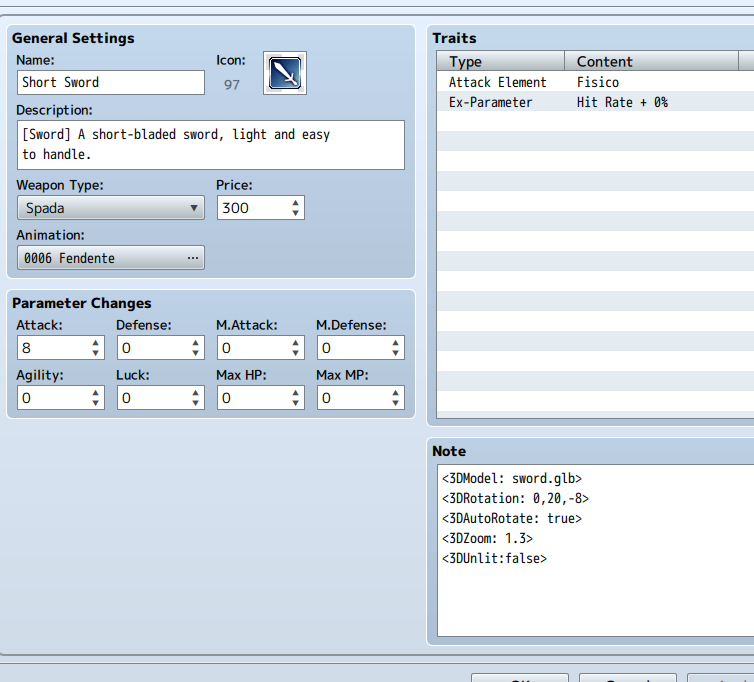
To assign a 3D model to an item, weapon or armor, open its entry in the RPG Maker MZ Database.
Inside the Note box, add:
<3DModel: filename.glb>
For example:
<3DModel: sword.glb>
The plugin will load the model from the folder configured as Model Root in Blue 3D Core.
Subfolders are also supported.
For example:
<3DModel: weapons/sword/scene.gltf>
Once the notetag is configured, the model will automatically appear in the 3D preview window when the corresponding item is selected.
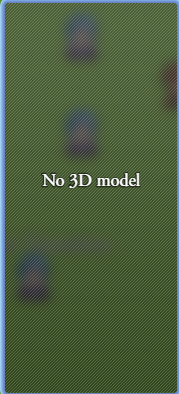
Items without the notetag will display the configured Empty Text instead.
ADDITIONAL NOTETAGS
In addition to the model filename, you can customize the appearance and behavior of individual 3D models directly through notetags.
Initial Rotation
<3DRotation: 0,90,0>
Sets the initial X, Y and Z rotation of the model in degrees.
Offset
<3DOffset: 0,0.2,0>
Changes the model position using X, Y and Z coordinates.
Scale
<3DScale: 1.2>
Sets the model scale multiplier.
Zoom
<3DZoom: 1.3>
Sets the initial preview zoom, within the limits configured in Blue 3D Core.
Auto Rotate
<3DAutoRotate: false>
Enables or disables automatic model rotation.
Rotation Axis
<3DRotationAxis: z>
Sets the automatic rotation axis.
Available values: x, y, z.
Rotation Speed
<3DRotationSpeed: 20>
Sets the automatic rotation speed in degrees per second.
Unlit
<3DUnlit: true>
Enables texture-focused rendering without dynamic lighting.
These notetags override the corresponding default settings configured in the Plugin Manager.
PLUGIN PARAMETERS
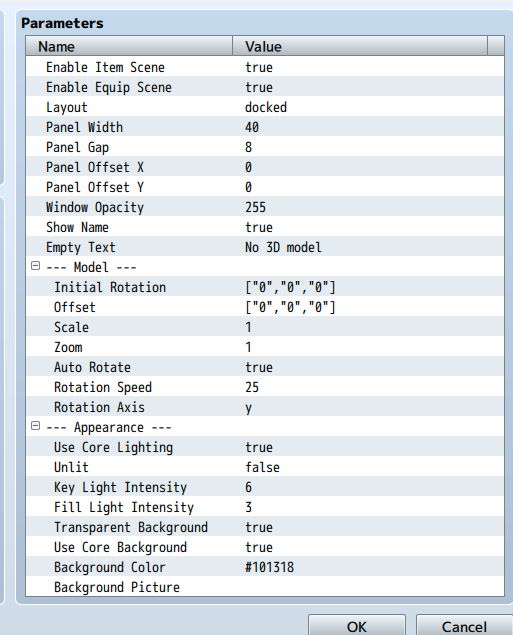
GENERAL SETTINGS
Enable Item Scene
Enables or disables the 3D preview window inside the Item scene.
Enable Equip Scene
Enables or disables the 3D preview window inside the Equipment scene.
Layout
Determines how the preview window is displayed.
Docked Right
The plugin reserves space for the preview window on the right side of the item or equipment list.
Overlay
Displays the preview window over the existing layout without resizing the original lists.
Panel Width
Defines the preview window width as a percentage of the original item or equipment list width.
Panel Gap
Sets the spacing between the item list and the preview window when using Docked mode.
Panel Offset X / Panel Offset Y
Adjusts the preview window position.
Window Opacity
Determines the opacity of the preview window.
Show Name
Displays the name of the selected item, weapon or armor inside the preview window.
Empty Text
Text shown when the selected item does not have an assigned 3D model.
Default:
No 3D model
MODEL SETTINGS
Initial Rotation
Default X, Y and Z rotation applied to models.
Offset
Default model position offset.
Scale
Default model scale multiplier.
Zoom
Default zoom level.
Auto Rotate
Enables or disables automatic model rotation.
Rotation Speed
Determines the automatic rotation speed.
Rotation Axis
Selects the axis used for automatic rotation.
APPEARANCE SETTINGS
Use Core Lighting
When enabled, the plugin inherits the lighting settings configured in Blue 3D Core.
Disable this option to use the lighting settings provided by 3D Item Preview.
Unlit
Displays models without dynamic lighting.
Key Light Intensity
Controls the intensity of the main light.
Fill Light Intensity
Controls the intensity of the secondary light.
Transparent Background
When enabled, the 3D preview uses a transparent background.
This option is enabled by default.
The model is displayed over the preview window without an additional background image or color.
Use Core Background
When Transparent Background is disabled, this option determines whether the preview uses the background settings from Blue 3D Core.
Background Color
Sets a custom background color when Core background inheritance and transparency are disabled.
Background Picture
Optional background image loaded from:
img/pictures/
ITEM AND EQUIPMENT SCENES
3D Item Preview works with the standard RPG Maker MZ inventory and equipment interfaces.
The preview automatically follows the currently highlighted item.
In the Item scene, the selected item's model is displayed inside the preview panel.
In the Equipment scene, the preview can display models associated with equipped weapons and armors, as well as items available in the equipment selection list.
Selecting an empty equipment option clears the displayed model.
The plugin preserves the normal handlers for item usage, equipment changes, actor switching and help windows.
The 3D preview is visual only and does not change item or equipment functionality.
MOUSE CONTROLS
The 3D preview supports mouse interaction.
Left Mouse Button + Drag
Rotates the displayed 3D model.
Mouse Wheel
Zooms the model in or out.
Keyboard and gamepad navigation continue to use the standard RPG Maker MZ inventory controls.
PLUGIN COMPATIBILITY
The plugin is developed for RPG Maker MZ and requires Blue 3D Core.
It integrates with the standard Item and Equipment scenes without replacing their classes.
For projects using heavily customized menu layouts, the Overlay option may provide better compatibility than Docked mode.
Plugins that significantly modify the Item or Equipment scenes may require additional compatibility adjustments.
Full compatibility with all VisuStella plugin combinations cannot be guaranteed.
This plugin is NOT compatible with RPG Maker MV.
THIRD-PARTY SOFTWARE
3D Item Preview uses Blue 3D Core, which relies on Pixi3D 2.5.0.
Pixi3D is distributed under the MIT License.
All third-party software remains subject to its respective copyright and license terms.
No 3D models are included with this plugin.
When using third-party 3D models, please verify their respective licenses before distributing your project.
TERMS OF USE
- Credits to Bluemoon / Sparrow Tales.
- You may edit the code for your own project.
- This plugin can be used in both commercial and non-commercial projects.
- Do not redistribute this plugin as-is.
- Do not incorporate portions of this plugin into another plugin for redistribution.
- Do not remove or alter the plugin header information, filename or parameter names.
- Third-party software and assets remain subject to their respective licenses.
Thank you very much for the support!
Purchase
In order to download this tool you must purchase it at or above the minimum price of $6.99 USD. You will get access to the following files:
Leave a comment
Log in with itch.io to leave a comment.